Add-on's are used to add extra charges/services such as Extra bed, Onsite parking, Breakfast etc.
Login to InnGenius
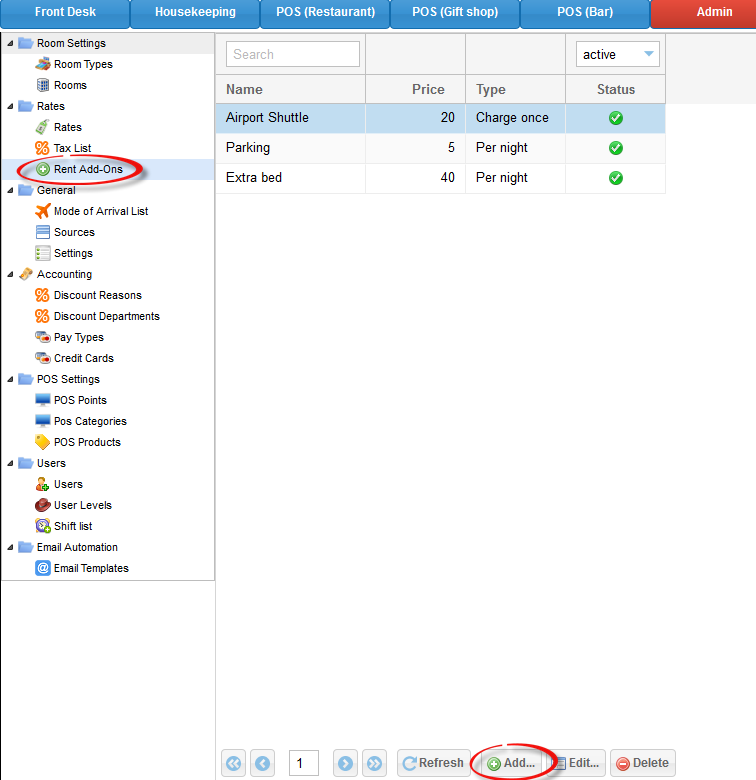
Click on Admin Tab, then Rent Add-On's button (shown below) to create a new Add-on, press the Add button located on the bottom of the screen. You will notice some examples of Add-on’s below.
Fill out the details of your Add-on and press OK (example shown below)
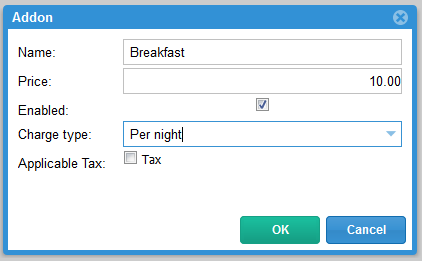
Create as many Add-on’s as you need. To disable an Add-on, simply untick the Enabled box (see above) and press OK
These Add-on’s are located in the Reservation screen (example shown below)
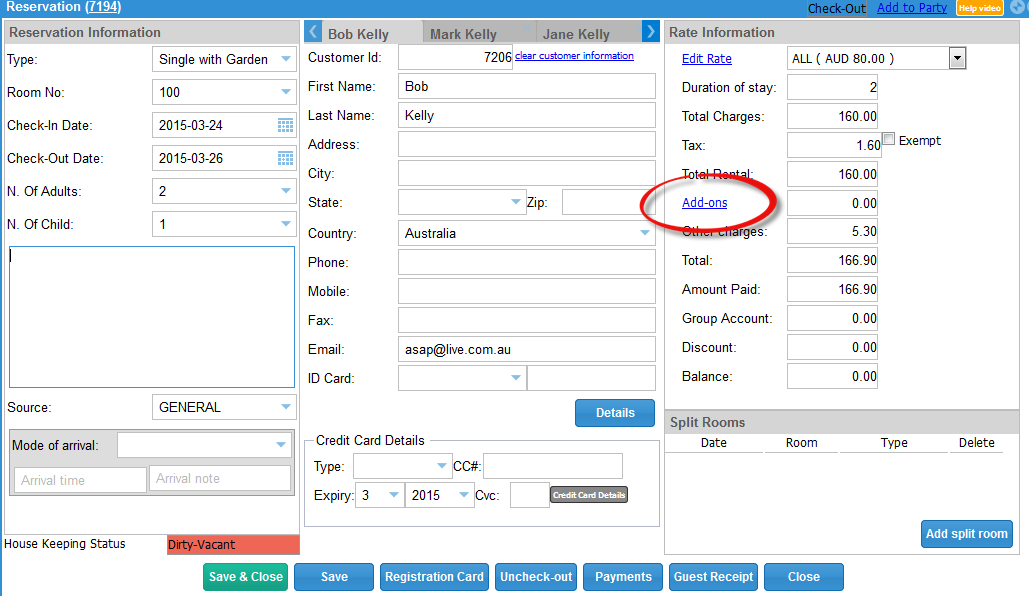
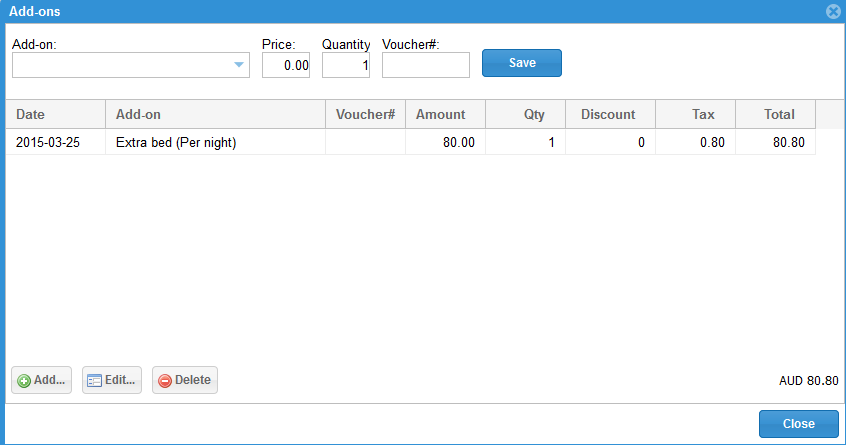
Once you click on the Add-on button, this screen will appear. Use the drop down box to select the type of Add-on needed. (select as many as needed)
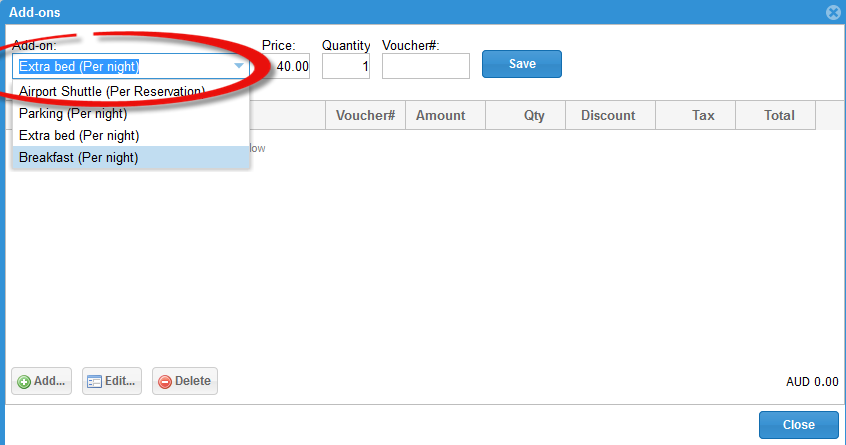
It will then be saved to the customer’s reservation card – click on Close button on this screen
The balance on Add-on’s has been updated on the reservation card, Save & Close
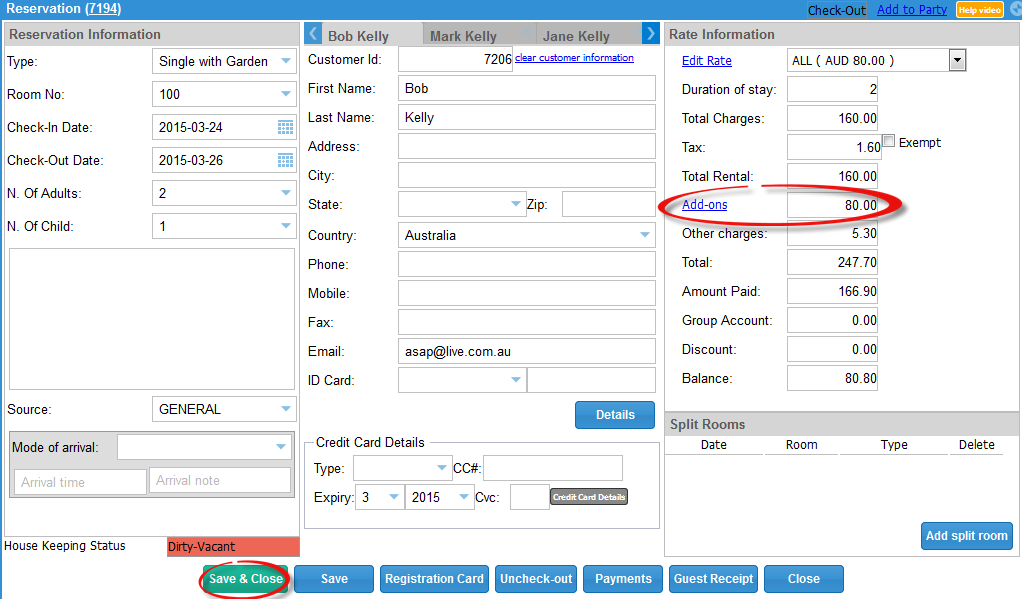
If you wish to remove an Add-on, simply click on the Add-ons button link in the reservation (seen above) and select the add-on you wish to remove from the list, then press the delete button below it.
0 Comments