Login to InnGenius
Click on Admin Tab, then press POS Points and double click on POS Restaurant (shown below)

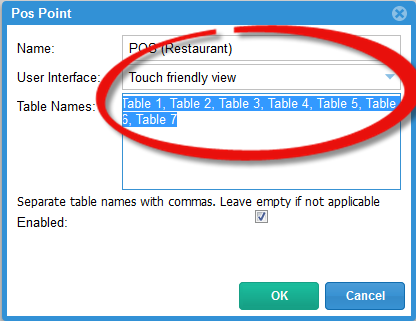
Enter the amount of Tables you have in your Restaurant and press OK – example shown below
Then Refresh your screen for the changes to take effect
Click on POS Restaurant button located on the top of your screen
Each time your Restaurant has a customer, you simply click on a Table, for example Table 1
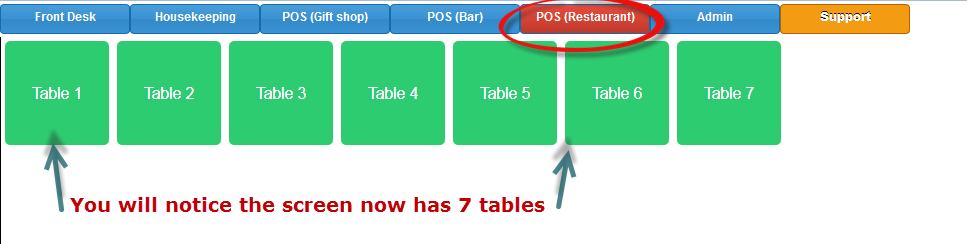
Then the screen below appears
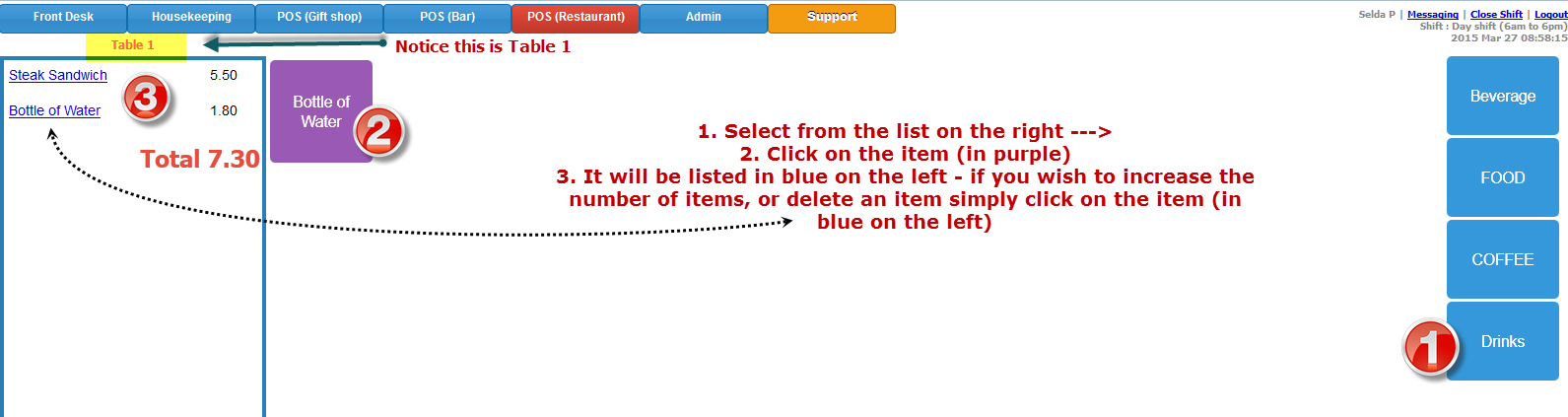
Clicking on the Item will allow you to increase, decrease or delete it as seen below

You are able to serve more than 1 customer at a time – simply leave the screen as is and press POS Restaurant button on the top of your screen and it will show Table 1 is already being used by its color (red)
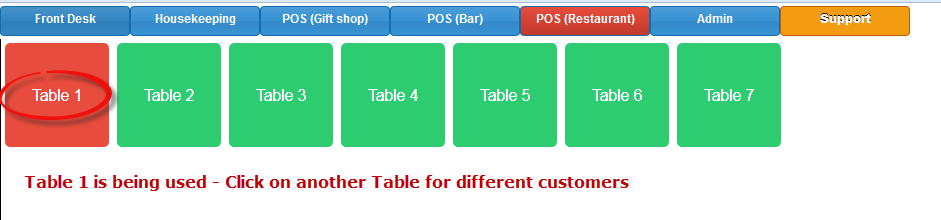
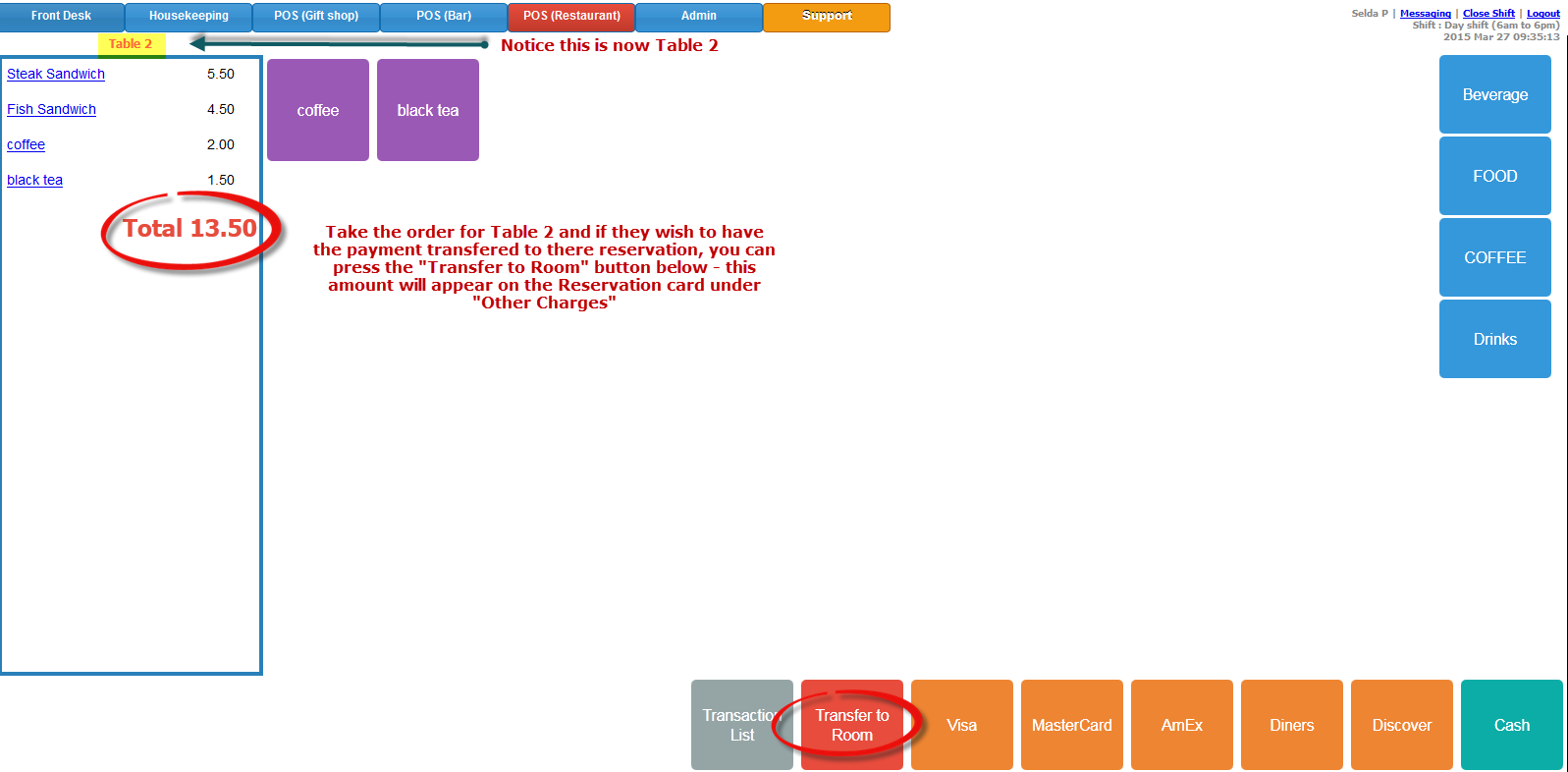
By clicking on another table, you are taking another order (multiple customers means multiple tables)

This will generate an Invoice for your records (example shown below)

You can see the "Other Charges" in the customers Reservation (see below)

0 Comments